How to Compare Subject Line Performance for HubSpot 1:1 Emails
If you have already sent a large number of 1:1 sales emails, your overall open and reply rates do not tell you which exact subject lines performed best.
There are two different ways to approach this:
- Compare exact subject lines from emails that have already been sent.
- Set up a template-based test before sending future emails.
This guide covers both methods.
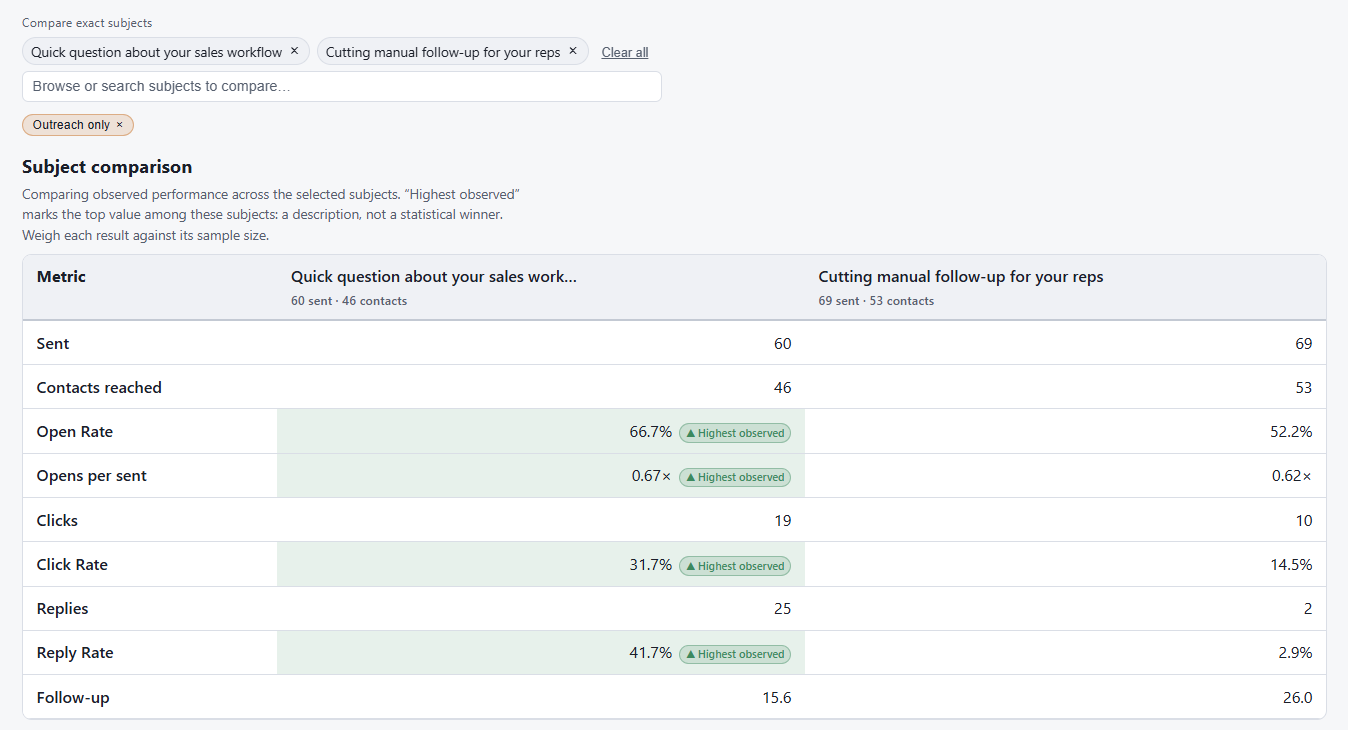
Compare previously sent subject lines in Dayleeds
Use this method when you want to compare exact subjects across your existing HubSpot 1:1 email activity.
- Sign in to Dayleeds and connect your HubSpot account.
- Sync your HubSpot sales activity.
- Open Subjects.
- Click Compare exact subjects.
- Enter or select the subject lines you want to compare.
- Run the comparison.
Dayleeds displays the available sent, open, and reply results for the selected subjects side by side.
To review more of your email history, return to Subjects, choose the metric you want to rank by, and display the top 5, 10, or 20 subject lines.
This lets you compare exact subjects across your synced 1:1 email activity, whether the emails were written manually, sent from templates, or sent through sequences.
Set up a subject-line test in HubSpot
HubSpot supports A/B testing for email steps in standard sequences. This method works when you create the template versions before enrolling contacts.
The feature requires:
- Sales Hub or Service Hub Professional or Enterprise.
- An assigned Sales or Service seat.
- Permission to create or edit sequences.
- A standard sequence.
Dynamic sequences do not support email A/B testing.
To create the test:
- In HubSpot, go to Sales > Sequences.
- Create a standard sequence or edit an existing one.
- Find the manual or automated email step you want to test.
- Click + Add A/B test.
- Select an alternate email template or create a new one.
- Give the versions different subject lines.
- Turn on Version B.
- Save the sequence.
- Enroll new contacts.
HubSpot distributes sends between the active versions and records sends, opens, clicks, replies, and meetings booked for each version.
You can review the results inside the sequence editor or in the Step Performance table on the sequence's Performance tab.
Only contacts enrolled after the test is added will receive the new version. This method does not retroactively compare subject lines from emails that were sent before the test was created.
Check overall 1:1 email rates in HubSpot
HubSpot also lets you create a report showing the average performance of your one-to-one emails.
To create it:
- Go to Reporting > Reports.
- Click Create report.
- Select Custom Report Builder.
- Click Choose my own data sources.
- Select Activities as the primary data source.
- Add one or more of these fields:
- Email Open Rate
- Email Click Rate
- Email Reply Rate
- Set your date range and other filters.
- Select a chart or display format.
- Save the report.
HubSpot also provides a prebuilt report under Reporting > Reports > Sales > Activities & leads > Emails. Both methods are covered in HubSpot's documentation for creating one-to-one email reports.
These reports are useful for checking overall performance. They do not provide the same exact-subject comparison for previously sent emails.
How the two methods differ
Dayleeds can be used to analyze subject lines across all your synced HubSpot 1:1 email activity. This includes manually written emails, template emails, and emails sent through sequences.
HubSpot's sequence A/B testing has a narrower purpose. It distributes future sends between template versions that you prepare in advance. Only contacts enrolled after the test is activated receive the new versions.
| Capability | Dayleeds | HubSpot sequence A/B testing |
|---|---|---|
| Analyze emails that have already been sent | Yes | No |
| Analyze manually written 1:1 emails | Yes | No |
| Analyze template emails | Yes | Limited to versions inside the sequence test |
| Analyze sequence emails | Yes | Limited to the configured sequence and versions |
| Select exact historical subjects to compare | Yes | No |
| Rank subject lines across all email activity, with filters to segment the results | Yes | No |
| Distribute future sends between test versions | No | Yes |
| Run a planned subject-line experiment | No | Yes |
Use Dayleeds when you want to understand the subject-line performance of your existing HubSpot email activity.
Use HubSpot's sequence A/B testing when you want HubSpot to distribute future sends between prepared template versions. You can then use Dayleeds to examine those subjects alongside the rest of your synced 1:1 email activity.
A Dayleeds comparison shows the observed performance of emails that were sent under real sales conditions. A HubSpot sequence test is a planned experiment that distributes contacts between prepared versions. These methods can be used together, but Dayleeds covers the broader historical analysis.
Request a Dayleeds demo to see exact-subject comparisons using synced HubSpot email activity.