How to See All Contacts With Bounced Sales Emails in HubSpot
HubSpot shows bounce information for individual 1:1 sales emails, but finding every contact with a current delivery problem is more difficult.
A HubSpot activity report can show which email sends bounced or failed. However, it reports email activities rather than producing one current, deduplicated list of contacts that need attention.
Dayleeds creates that contact-level list from your synced HubSpot 1:1 email activity, including manually written emails, template emails, and emails sent through sequences.
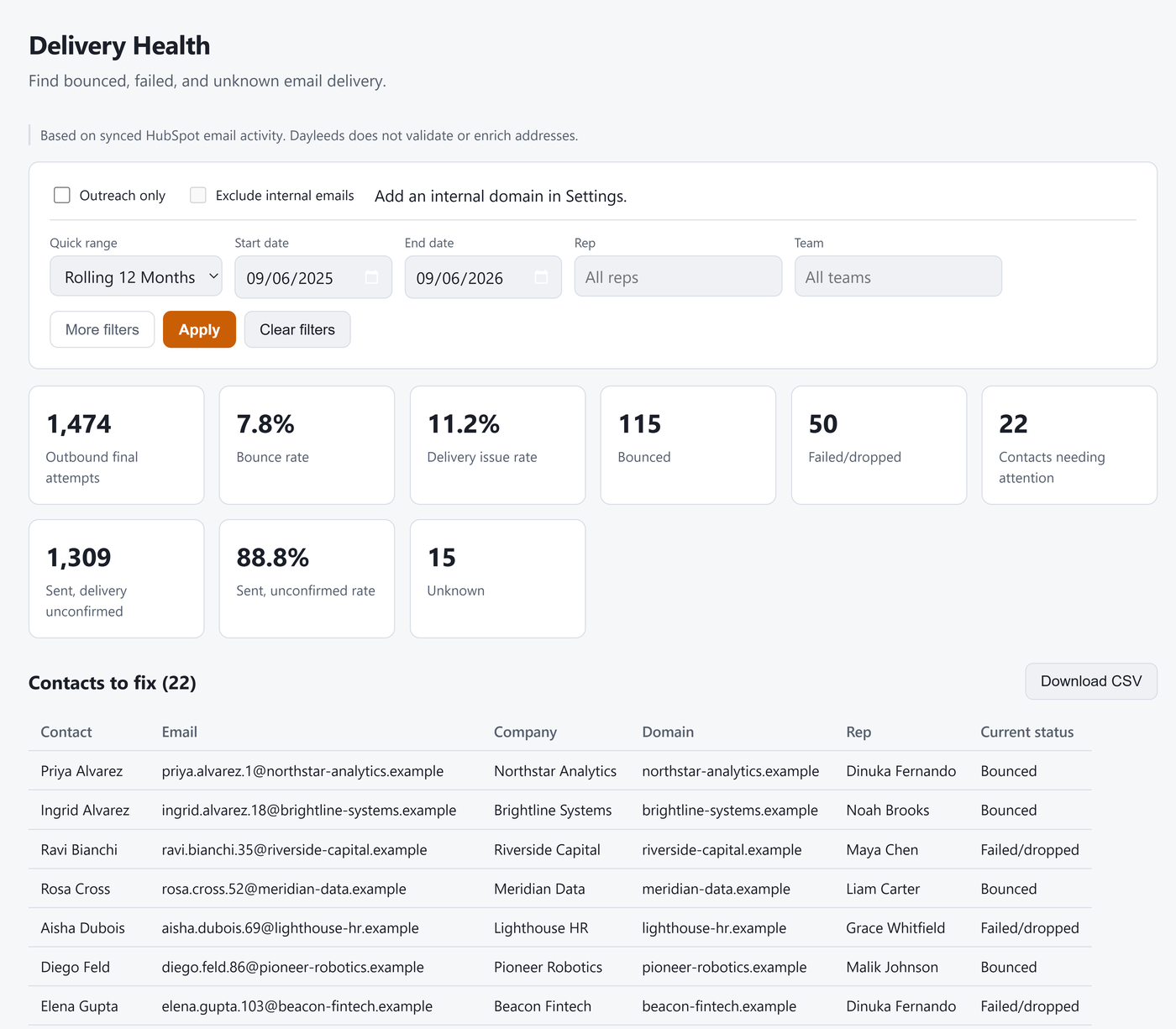
Find contacts with delivery issues in Dayleeds
- Sign in to Dayleeds and connect HubSpot.
- Sync or refresh your HubSpot activity.
- Open Delivery Health.
- Select your date range.
- Filter by rep or team if needed.
- Click Apply.
- Review the Bounced, Failed/dropped, and Contacts needing attention totals.
- Open Contacts to fix.
- Review the contacts or click Download CSV.
Dayleeds consolidates multiple email activities into one contact-level list. This allows you to see which contacts need attention without searching through every bounced or failed email separately.
The results are based on your synced HubSpot activity. Dayleeds does not independently validate or enrich email addresses.
What the delivery statuses mean
| Status | Meaning |
|---|---|
| Bounced | HubSpot recorded that an attempted email could not be delivered. The address may be invalid, but mailbox problems and security filters can also cause a bounce. |
| Failed/dropped | The email did not complete the normal sending process or was prevented from sending. |
| Unknown | The synced activity does not contain enough information to classify the final result. |
| Sent, delivery unconfirmed | HubSpot recorded the email as sent, but the synced activity does not confirm that it reached the recipient's inbox. |
A hard bounce usually indicates a permanent problem. A soft bounce usually indicates a temporary mailbox, server, or filtering problem.
HubSpot explains these distinctions in its documentation about email bounce types.
Find bounced sales email activity in HubSpot
HubSpot's 1:1 email activity properties include an Email send status field with values such as Bounced, Failed, and Sent.
To report on that activity:
- Go to Reporting > Reports.
- Open the sales analytics reports.
- Select Completed activities.
- Choose a date range and filter by rep if needed.
- Group or filter the email activity by Email send status.
- Select Bounced or Failed.
HubSpot documents the available statuses under its default activity properties and the report under sales analytics.
This report shows where delivery problems occurred, but it is activity-based. The same contact can appear through several failed activities, and an old bounce can remain even after a later successful email. It does not produce the current, one-row-per-contact Contacts to fix list available in Dayleeds.
If you need the complete bounce response for one specific email, open the email on the HubSpot contact timeline or check the sending rep's connected inbox.
Marketing email bounce lists are different
HubSpot provides direct bounced-recipient lists for marketing emails. Those lists do not represent all manually written, template, and sequence-based 1:1 sales emails.
Dayleeds Delivery Health is designed to organize delivery problems across your synced HubSpot 1:1 sales email activity.
Request a Dayleeds demo to see which contacts need attention.